Integrating Vercel with Tinybird
Use this integration to link your Tinybird Workspaces with your Vercel Projects and sync Tinybird Static Tokens into Vercel Environment Variables.
This integration makes it easy to use Tinybird as a purpose-built analytics backend from within the Vercel Marketplace. Build any kind of analytics, be it web analytics, structured logging, telemetry, anomaly detection, personalization or anything else you can think of - and never have to worry about infrastructure, scale or security.
Add the Tinybird integration
There's basically two stages to this process - adding Tinybird to your Vercel account to set the overall scope of the integration, and then connecting specific Vercel Projects to Tinybird Workspaces.
To get started, you can either search for Tinybird in the Vercel integration marketplace, which looks like this:

Alternatively, use this link to create a new Tinybird integration directly.
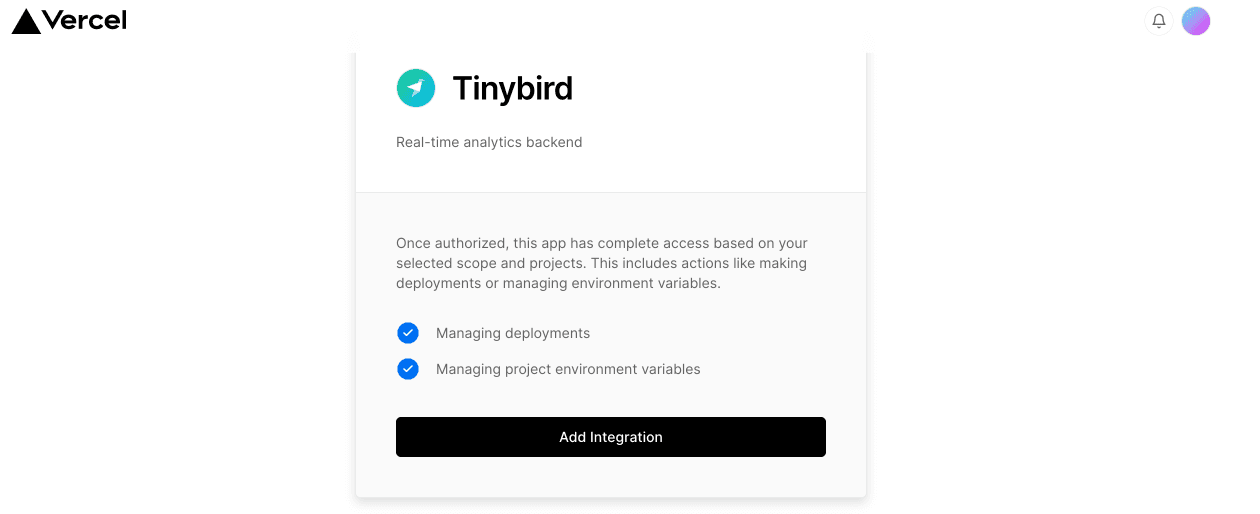
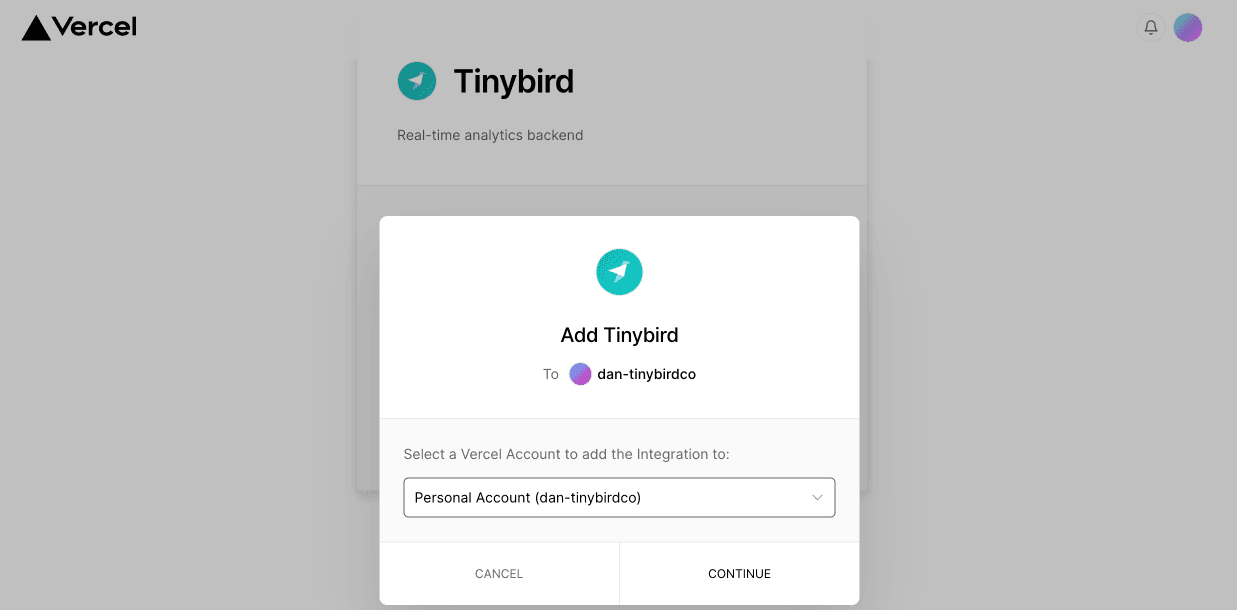
Either way, select Add integration to get started, and then select your target Vercel Account.
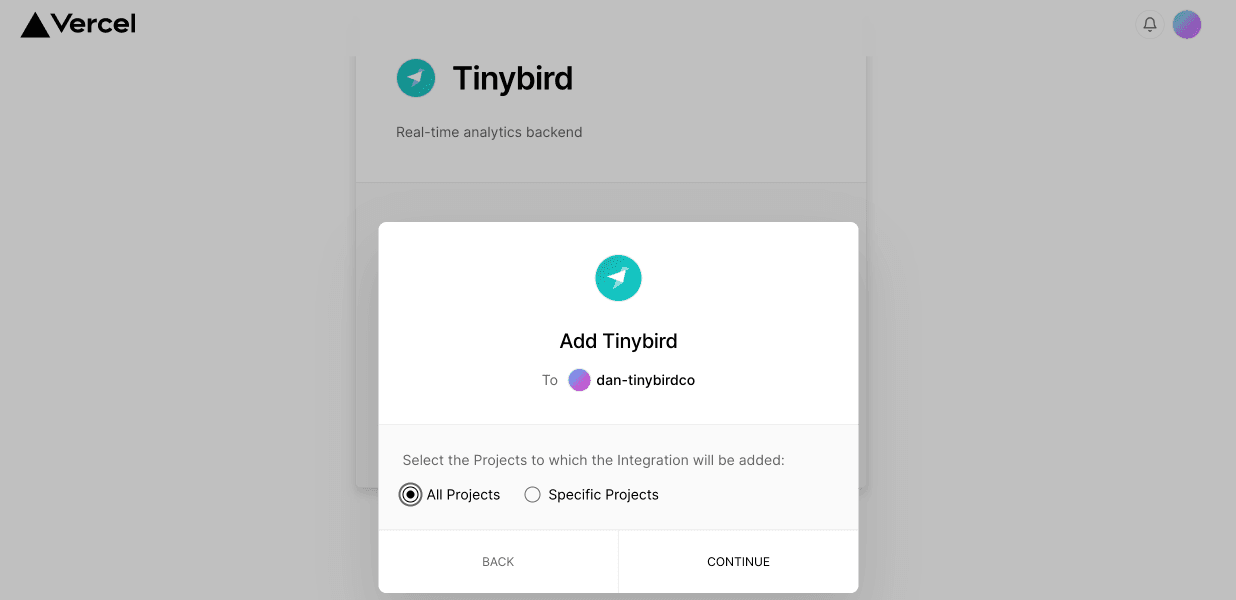
Next, select the Projects to add the Tinybird integration to. This scope controls which Projects are available to connect to a Tinybird Workspace.
You can limit the selection to a specific project if you want.
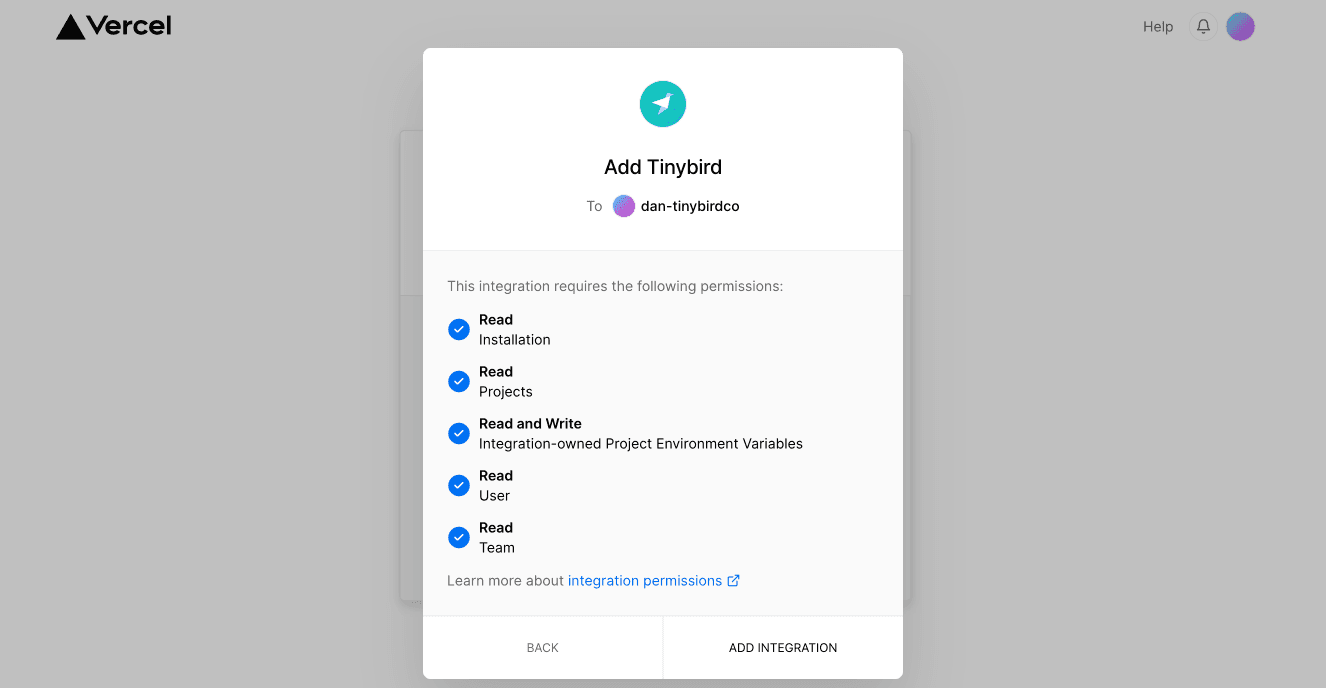
Finally in this section, review and approve the required permissions to allow this integration to function.
You need permission to read Project and Account information and manage the environment variables in the Projects to provide Tokens and URLs for connectivity.
The integration workflow starts by connecting a Project to a Workspace. You can return to it later through the Integrations dashboard in your Vercel Account.
Integrate a Vercel project
To set up a new Workspace integration from the Vercel Account integrations control panel, select the Tinybird integration and then Configure. This workflow opens automatically the first time you add the integration to the Account.
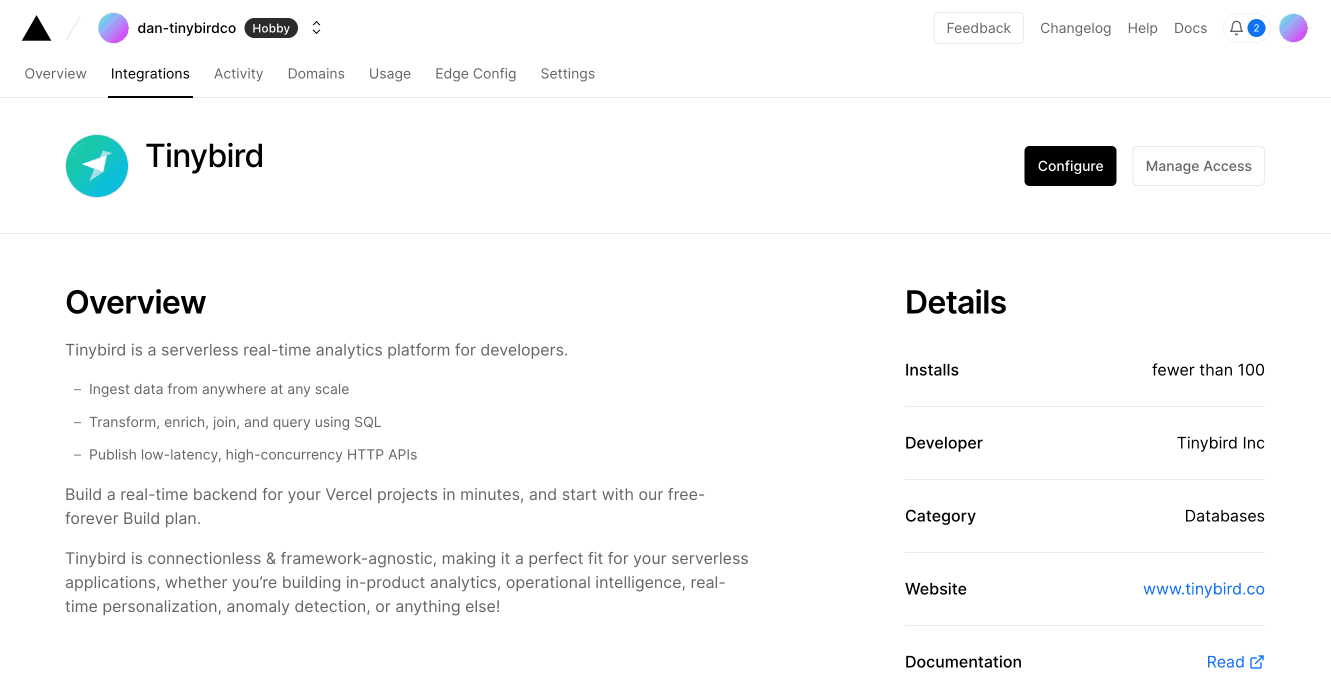
In this control panel, review existing integrations or add your first one.

First in this workflow, select which Tinybird region you want to connect to

Next, select at least one Vercel Project. The integration adds the Environment Variables to every selected Project.

Now you need a Tinybird Workspace to integrate with - you can either pick one you already have, or you can create a shiny new one by popping out into the Tinybird UI.

Select which Static Tokens you want to sync into the Vercel Projects as Environment Variables.
If the Token you want isn't in the list, open the Tinybird UI and create one with the required scope. For an initial setup, use the default admin Token and reduce its scope later.

Your Vercel project or projects now have these Tokens available and ready to use.
The Environment Variables use the naming format TB_<WORKSPACE_NAME>_<TOKEN_NAME>.
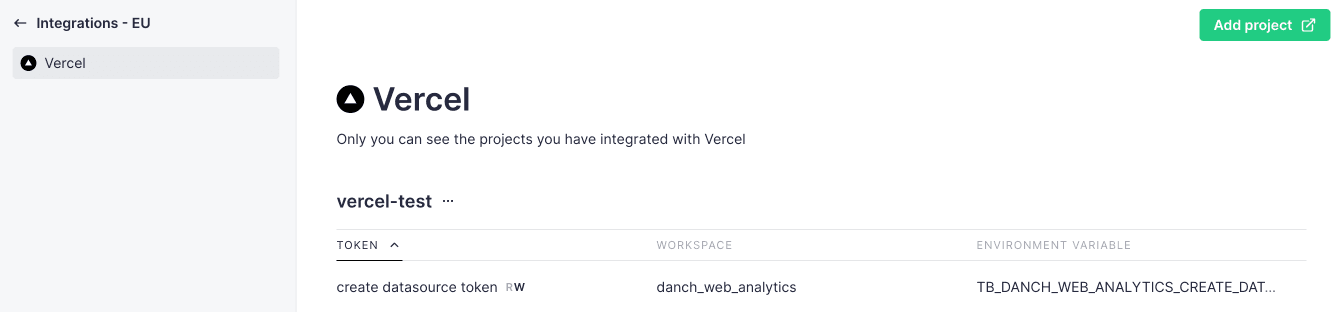
In the Tinybird UI, open Integrations from the main menu to review your integrations.
To update an integration, rerun the workflow by clicking the Add project button.
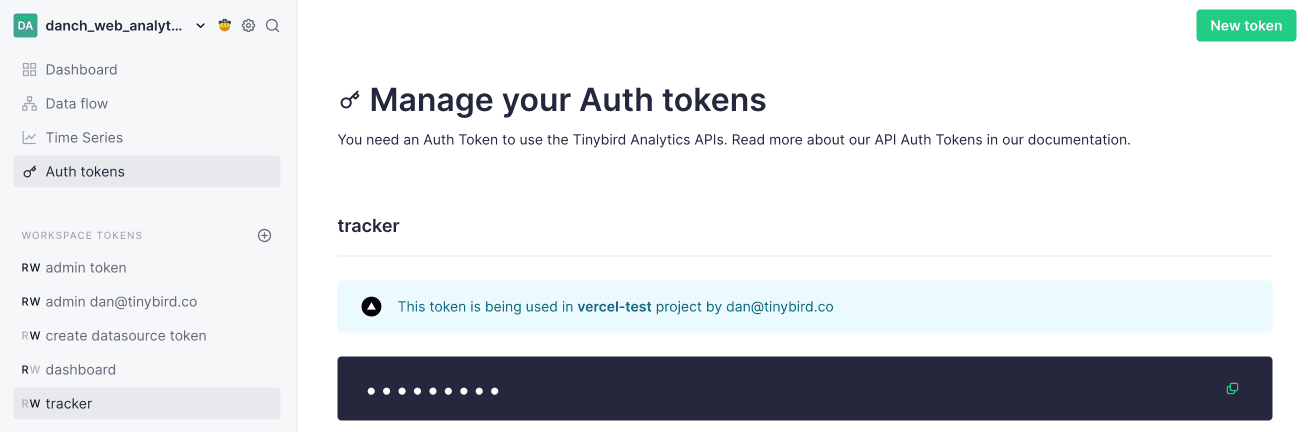
The Tokens page in the Tinybird UI displays a notification when a Token is actively synchronized.
Removing the integration
To remove Tinybird from your Vercel Account, go to the Integrations management page and select Remove integration.
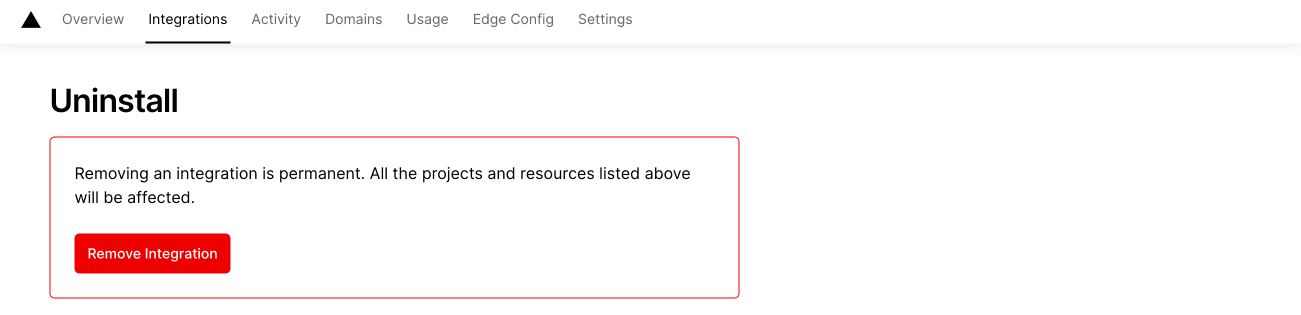
This action removes the Integration and Environment Variables. It doesn't remove your Tinybird Workspaces or Tokens.